Trados Plugin
A Translation provider for Trados made by Pangeanic.
About versions
There is a release of our plug-in for each version of Trados listed below:
| Trados commercial version | Trados internal version |
|---|---|
| Trados 2024 | >=18 |
| Trados 2022_SR2 | >=17.2 <18 |
| Trados 2022 | >=17.0 <17.1 |
Other versions of Trados are not supported or not supported anymore.
How to install?
Step 1: Previous version of the plug-in
If this is your first time installing our plug-in, you can skip this step.
When updating our plugin to a new version, it's essential to delete the 'unpacked' version of the plug-in that Trados creates automatically when a new plugin is detected.
Unpacked versions of all Trados' plug-ins are located there:
| Trados commercial version | Trados internal version | Download |
|---|---|---|
| Trados 2024 | >=18 | C:\Users\MYUSER\AppData\Roaming\Trados\Trados Studio\18\Plugins\Unpacked |
| Trados 2022_SR2 | >=17.2 <18 | C:\Users\MYUSER\AppData\Roaming\Trados\Trados Studio\17\Plugins\Unpacked |
| Trados 2022 | >=17.0 <17.1 | C:\Users\MYUSER\AppData\Roaming\Trados\Trados Studio\17\Plugins\Unpacked |
Note: Replace MYUSER by your Windows username.
Note: C:\Users\MYUSER\AppData directory is hidden by default in windows.
Step 2: Download the plug-in
The plugin is just a file with the .sdlplugin extension. It is necessary to download the plugin that corresponds to your Trados version:
| Trados commercial version | Trados internal version | Download from github | Download from RWS appStore |
|---|---|---|---|
| Trados 2024 | >=18 | Download | Download |
| Trados 2022_SR2 | >=17.2 <18 | - | - |
| Trados 2022 | >=17.0 <17.1 | - | - |
All the releases of our plug-in are published here.
Step 3: Install the plug-in
Just copy the file downloaded in step 2 to the appropriate folder:
| Trados commercial version | Plug-in directory |
|---|---|
| Trados 2024 | C:\Users\MYUSER\AppData\Roaming\Trados\Trados Studio\18\Plugins\Packages |
| Trados 2022_SR2 | C:\Users\MYUSER\AppData\Roaming\Trados\Trados Studio\17\Plugins\Packages |
| Trados 2022 | C:\Users\MYUSER\AppData\Roaming\Trados\Trados Studio\17\Plugins\Packages |
Note: Replace MYUSER by your Windows username.
Note: C:\Users\MYUSER\AppData directory is hidden by default in windows.
Usage
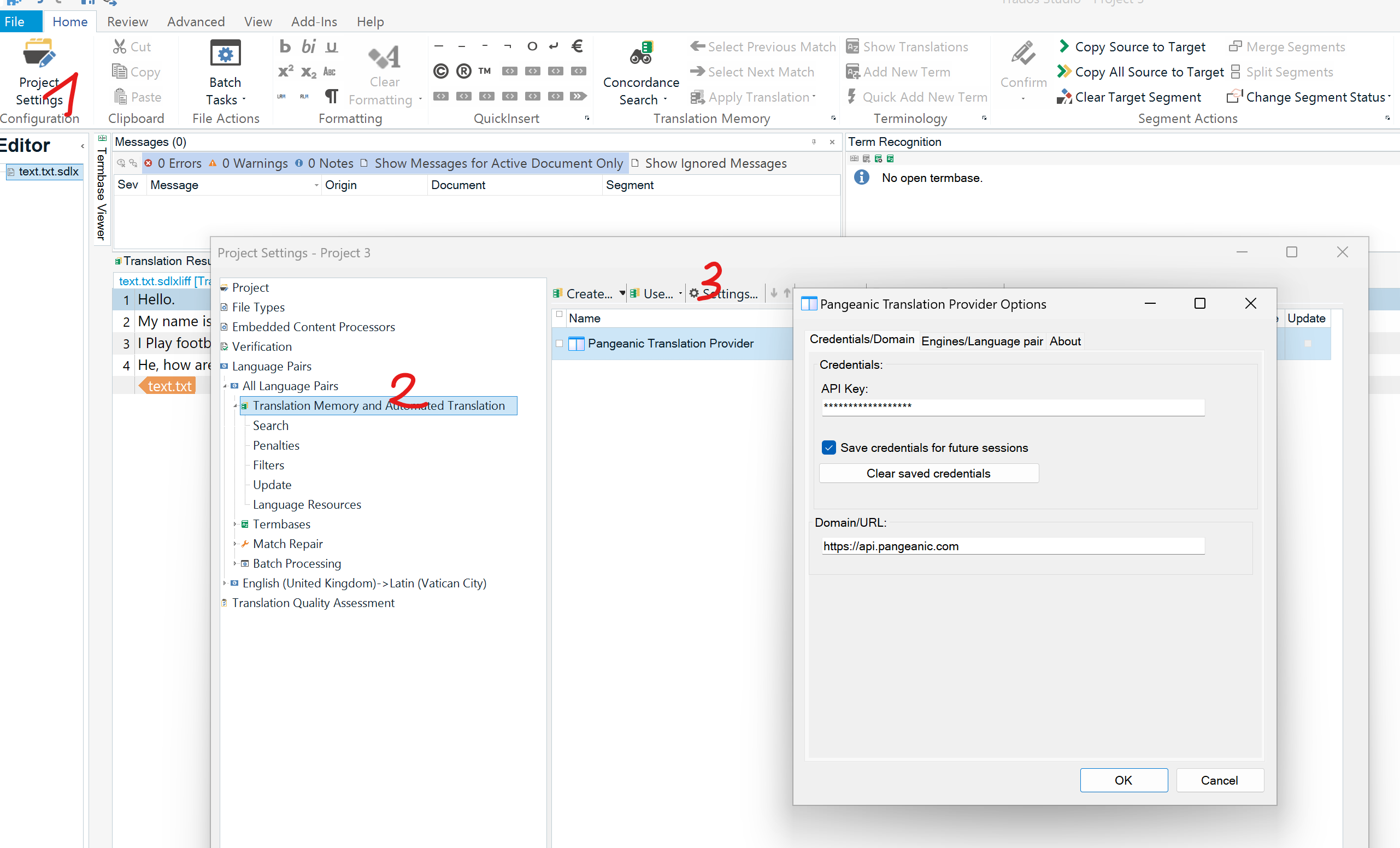
Step 1. Open the configuration panel:
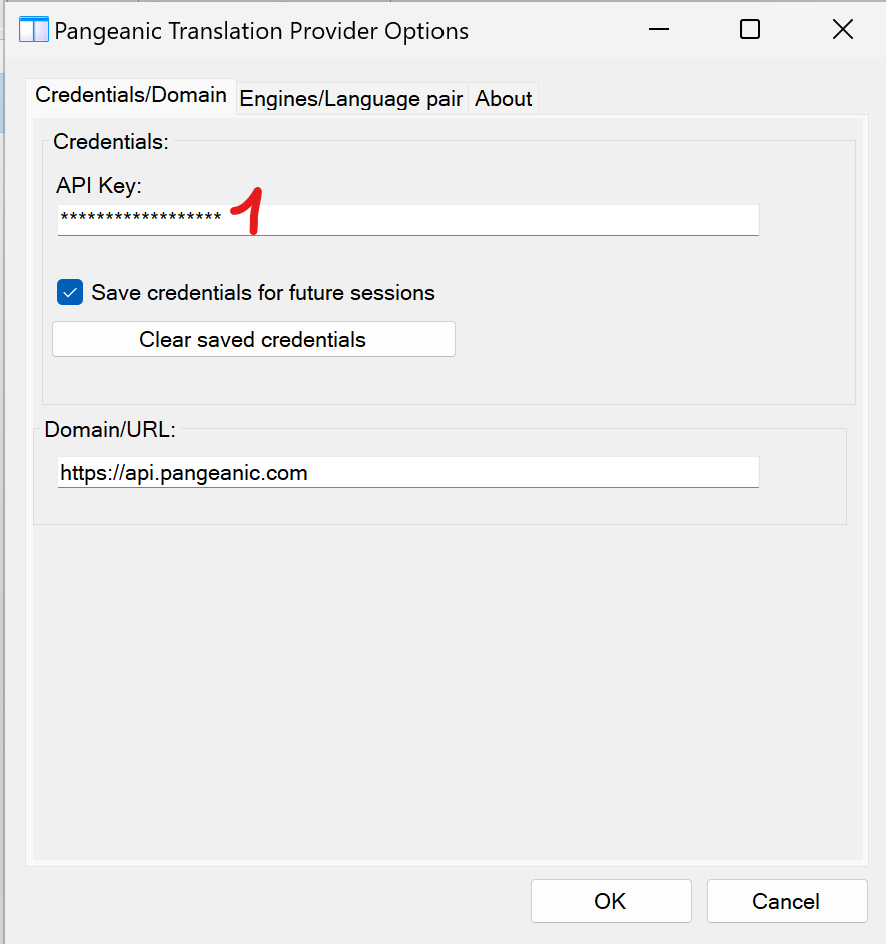
Step 2. Enter your API key:
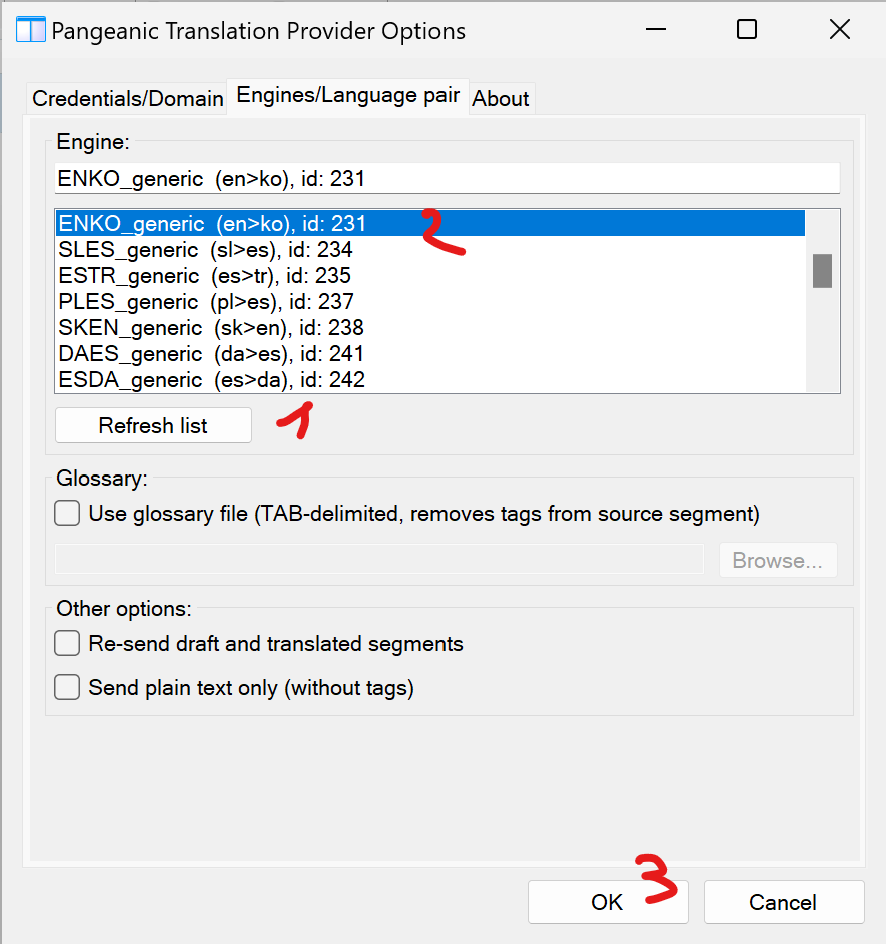
Step 3. Select the translation engine:
Problems?
Contact Support