MemoQ Plugin
Introduction
The MemoQ PangeaMT Plugin is a tool designed for using PangeaMT translation engines within the memoQ CAT tool. It was developed by Pangeanic and is distributed by MemoQ via its own interface/store.
For visual instructions and further technical information, you can follow this guide:
Installation
Download memoQ
-
Access the official download link: https://www.memoq.com/downloads.
-
Ensure you are using a compatible version, such as the latest release (e.g., MemoQ 9.8.8).
Software Setup
- Run the installer and follow the standard Windows application installation process: Next > Next > Next > Finish.
Configuration
Accessing the Plugin Store
-
Open the memoQ application.
-
Navigate to the Options menu (gear icon).

-
Select the Default resources category.
-
Click on the MT settings icon (represented by a cloud/gear symbol).
-
Create a New resource, put a name and a description and accept
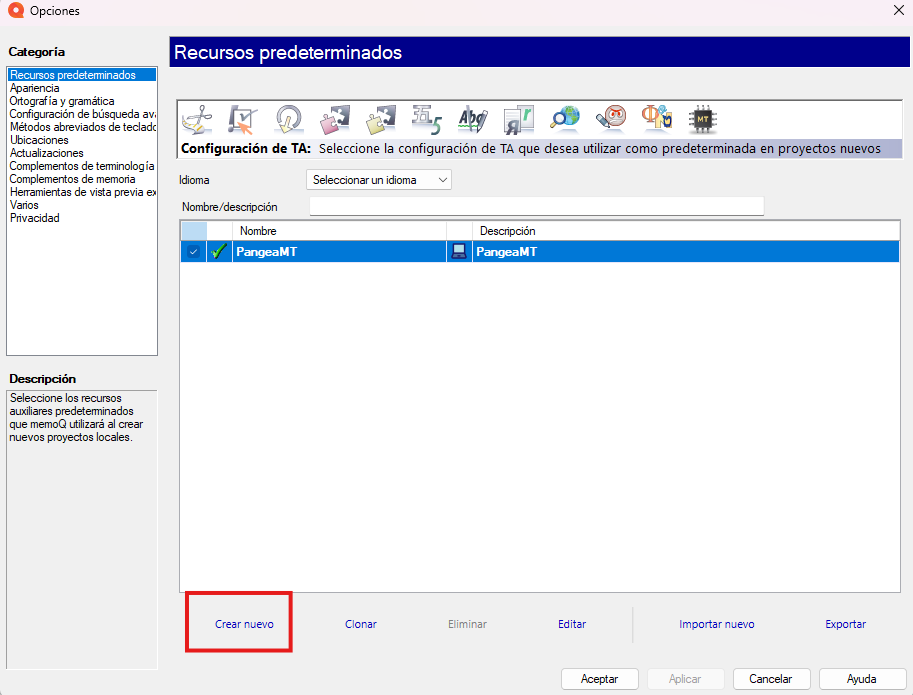
- Double click the created resource
Activating the Plugin
-
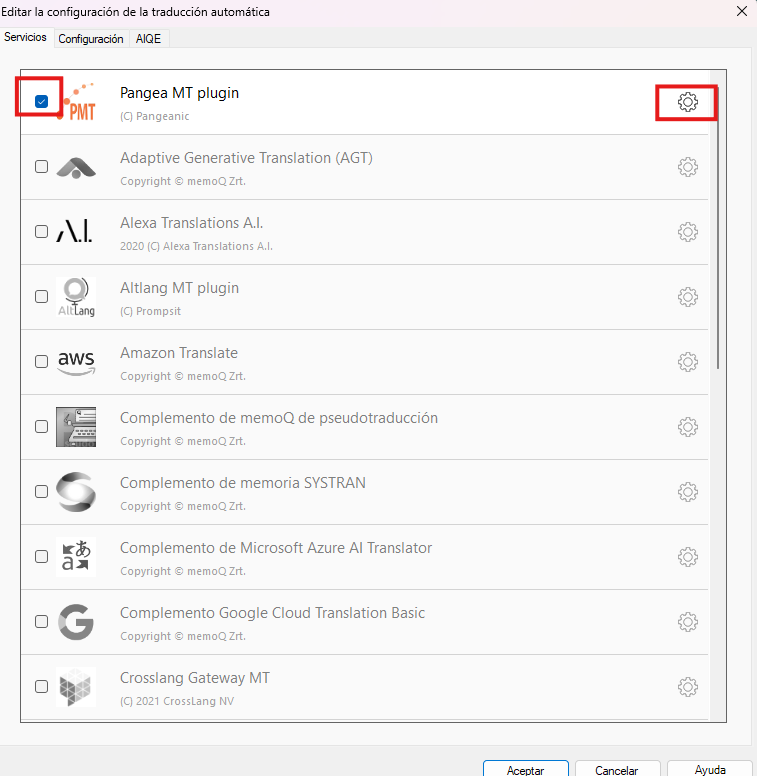
In the resource, locate Pangea MT plugin in the list of available services.
-
Check the activation box next to the PangeaMT logo and click the gear icon on the right side.
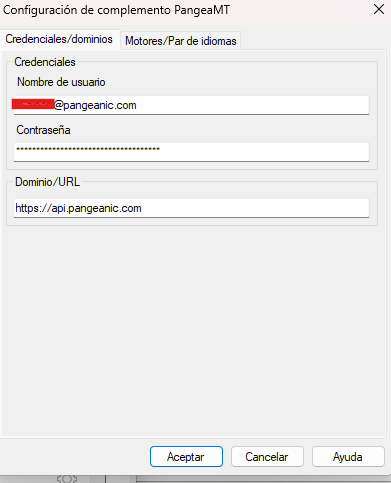
- Authenticate into the plugin with your email and APIKey. The URL has to be https://api.pangeanic.com
- Go to the engines tab and refresh the list, then select the desired one and the language pairs.
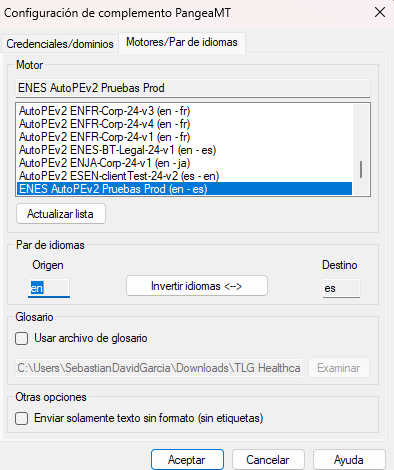
- Click OK (Aceptar) to save changes.
Usage (Translating Segments)
To translate a document using the plugin:
-
Right-click on an imported document in your project.
-
Select Preparation (Tareas) > Pre-translate... (Pretraducir).
-
In the Pre-translate and statistics window:
-
Check the box: "Use machine translation if there is no TM match".
-
Verify the MT plugin is set to "Pangea MT plugin".
-
Click OK (Aceptar).
-
The segments will be processed and the translation will appear in the target column.
Problems?
Contact Support